
How to use CrimsonZip
Learn More About CrimsonZip

Learn More / FAQ
What is CrimsonZip?
CrimsonZip is a new mobile application designed by the Harvard Community for the Harvard Community. CrimsonZip helps to connect people from across campus/es who like to engage in the same activities. These activities can be physical activities like sports, IMs, pick-up games, general physical activities like running or yoga, as well as social activities like House movie nights and study breaks. Looking to find a workout buddy, CrimsonZip. Looking to find the intermediate tennis partner, CrimsonZip. Connect, Move, Thrive!
How do I get started?
To get started with CrimsonZip you should visit either the Apple App Store or Google Playstore (coming September 2024) to download. A web version of CrimsonZip is also available with reduced features.
CrimsonZip is free to all active Harvard community members and requires HarvardKey credentials to login.
Notifications
CrimsonZip can be setup for two types of notifications. Notifications are sent when there has been a change to one of your events (e.g., time or location changed). Organizers can choose whether to send a notification of an event update.
- Email: users will be sent email notifications to the address specified (can be different than their Harvard.edu address).
- In-App: in-app / on device notifications. Notifications will appear as specified in the settings page for their device (iOS or android).
Schedule integration
- Calendar: when you join events they will automatically be added to your default calendar (to change the default calendar iOS, android). You can set up reminders, or other alerts in your favorite calendar application.
- On device: your schedule of events can always be found in your “My Events” tab located at the center bottom of CrimsonZip.
Can I use CrimsonZip for my club, department, or house?
Absolutely!
CrimsonZip has been designed from the ground up to support Clubs, Departments, and the fabulously unique culture and structures here at Harvard such as Houses, Yards, and Neighborhoods.
We’re happy to demonstrate how CrimsonZip can best be utilize by your group, and can assist with group/event creation and setup, membership management (bulk invites and enrollments), and other support services. We can be contacted at Contact@crimsonzip.org or you can schedule a meeting during our “office hours” (held on Tue 0900-1600).
More features are on the way to further help support Club, Department, and House usage of CrimsonZip so stay tuned!
Groups and events
Groups are focused around a specific set of activities (physical activities like yoga, or social activities like movie nights, or a combination) and can be created by all members of the Harvard Community. Groups can be found by searching for their name or by their activity type (filtering for running groups will show all running groups on campus). Groups have three types of members, owners, managers, and users. Owners are the creators of the group and can manage membership in the group, create/modify/delete events, and delete the group. Managers and do everything the owner can except for deleting the group. Users can see all the upcoming events hosted by the group. There is no limit to the number of managers or users for each group.
Events are hosted by groups and promoted to their members. Events will generally match the group activity, for example a running group will generally host running events, but are not required to, for example the running group might host a weekend soccer game. Users will be able to search for and join events without being a member of the group, but it’s encouraged for users to join groups of shared interests.
What are private and public groups?
Groups organized within CrimsonZip can be either public or private.
Public groups are open to the whole Harvard community and users are free to join and leave the group as desired. Public groups can be found through by searching within the groups or filtering by activity.
Private groups are available to the whole Harvard community, but users are required to ask to join the group, or be invited to the group by an owner or manager of the group. Private groups may only be found by searching for their specific name in the discover section of My Groups. Private group events will also not show up in the events tab of CrimsonZip unless you are an accepted member.
I’ve joined a group or event, now what?
Once you’ve joined a group, all upcoming events for the group will be listed in the upcoming tab of CrimsonZip. Users are free to attend events hosted by groups at their pleasure.
Adding an event to your calendar does not obligate you to attending the event, but does help organizers know the expected number of participants. Joining an event also allows organizers to easily alert you (if notifications are enable) of changes to the event like start time or meeting location.
If a group no longer hosts events of interest to you, you can leave the group by navigating to the group and then touching the more options (three dots in upper right of screen) and touch leave group.
What is an advocate?
An advocate is part of a commitment contract user’s can create to help them achieve their movement goals. Commitments are often used as a tool to boost a person’s willpower and to achieve behavioral changes, for example maintaining or increasing one’s movement / active time. An advocate in CrimsonZip is a third party (designated by the user) who can support and encourage you on your road towards being active. CrimsonZip will ask the user for
- Their movement goals (either to maintain their level of activity or to increase their activity)
- When they would like to achieve their goals by
- The name and email address of their advocate.
Each week CrimsonZip will inform (via email) your advocate of the progress towards the goals you have created, and give them the opportunity to provide encouragement or congratulations. Stronger encouragements can be negotiated outside of CrimsonZip and are between the user and advocate (e.g., a prize at the end of each week or the end of the goal period). For help setting up an advocate click here.
Please ensure the person you choose is willing to be an advocate and to have their contact information shared with CrimsonZip. CrimsonZip will use the contact information in support of the user’s goal ONLY and for no other purpose. Advocate contracts can be ended by the user at any time and is strictly a commitment between the user and their chosen advocate.
Resources
Resources to support being active can be found here on CrimsonZip.org as well as in the application. You’ll be able to find out information about campus resources such as Harvard Recreation, as well as promotions, charity events, and other important information to support your wellbeing.
Help & How-to’s
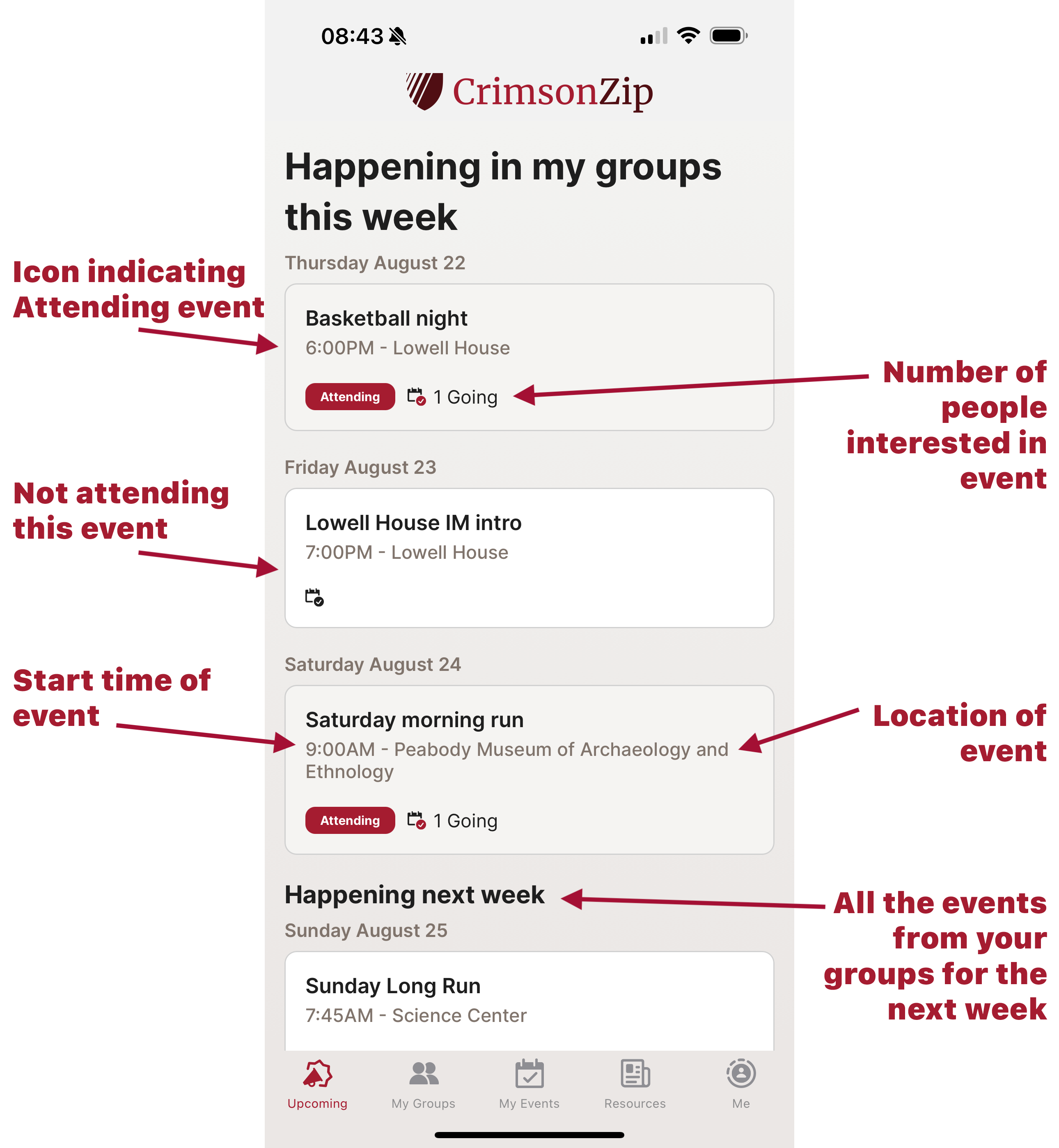
What’s happening this week
The main screen of CrimsonZip shows the events from the groups you have joined for the next two weeks.
Events are listed chronologically, and indicate the event location and start time for easy reference. Simply touch the event to find out more detailed information.
Events joined will be marked with an attending icon.

Finding and Joining Groups
Finding activities is simple. First you must enter the discover section in your My Groups tab. Then you can either search for or filter groups.
Searching for groups: You may search for groups by group name. Start entering text into the search field. As you enter text, the groups list displayed will shorten as fewer groups match your text. Once your group is displayed you may click the group and join as desired.
Filtering groups: Filtering groups allows you find all groups that match the activity you select, and optionally the experience level of the group. Once you’ve made your selections and clicked apply and listing of all groups matching your criteria will be displayed. Click any group to find out more information and to join as desired.
Creating Groups
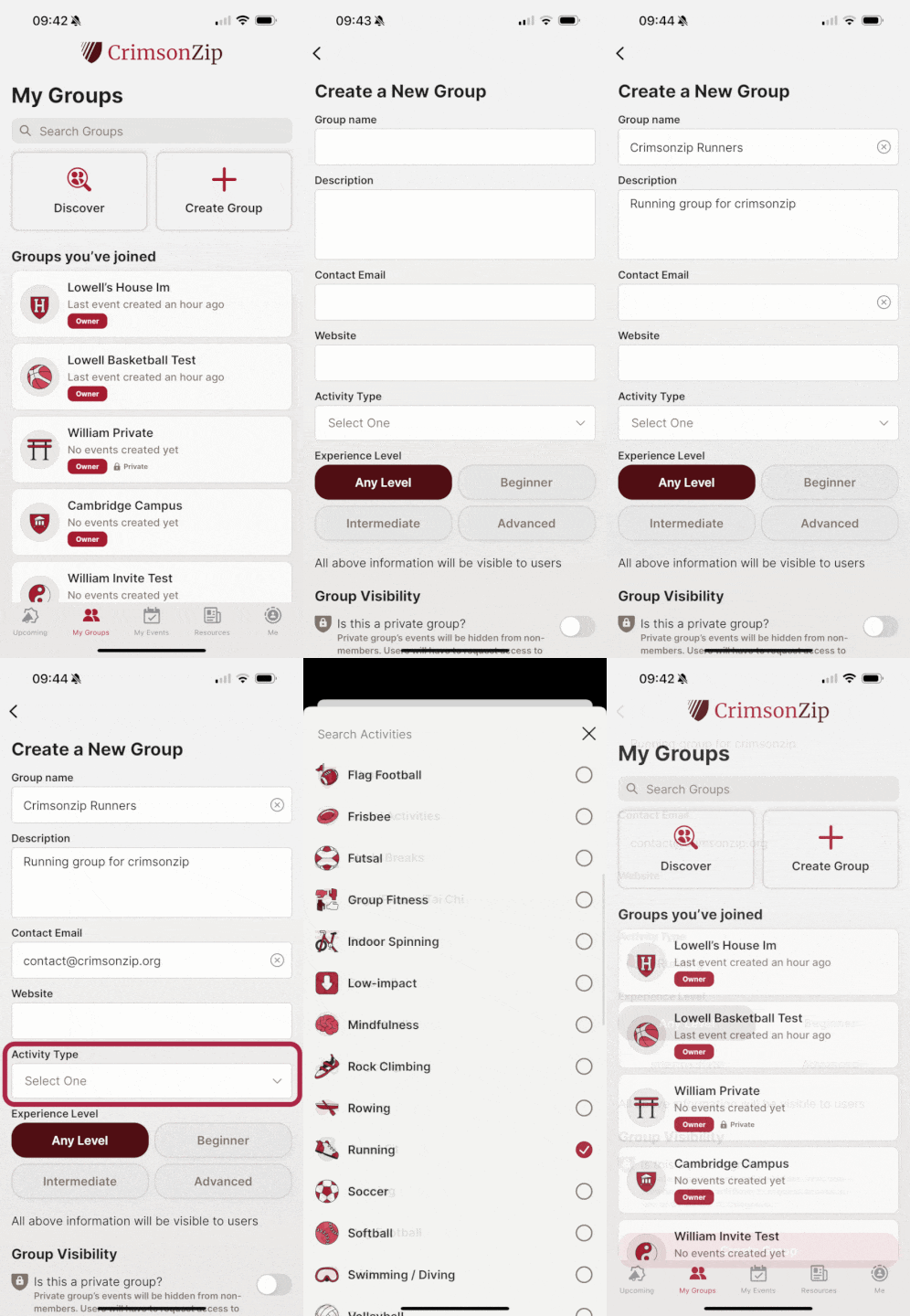
CrimsonZip users can create and manage groups for their favorite activities:
- Group name: Name for your group. Please remember to follow Harvard community guidelines.
- Description: Description of your group’s activities
- Email: Contact email for group organizer. This field will be pre-filled but you may change it as needed
- Website: Optional website URL for the event or organizing group as applicable.
- Activity type: Select the main type of activity for the group. Individual events can be of a different type from the group, for example, a running group may create events focused on non-running activities like yoga.
- Experience type: indicate an average experience level for the group, or select any to indicate the group is open to all levels of experience.
- Group visibility: Is the group a public group, i.e., open to the public and do not need an invitation or approval to join the group. Or private where a user will need to be invited or request to join the group. Private groups will not be listed when finding group and can only be found by searching for the group’s specific name.
Creating Events
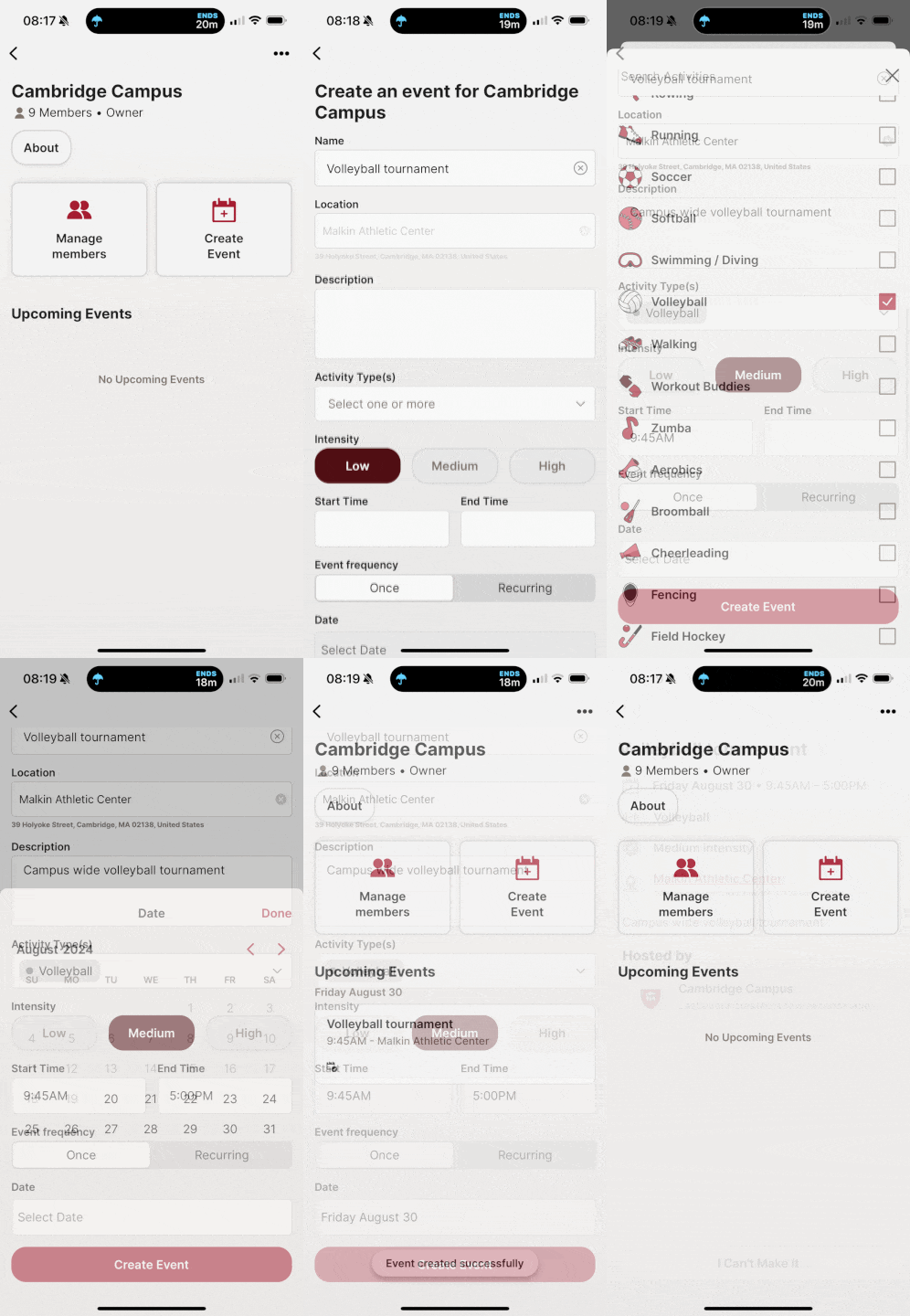
Events can be created for any group the user is a manager or owner of. To create events first navigate to the group.
- Events require the event name, location, date and time
- Events can be one time or recurring, i.e., every 1st Saturday of the month, or every Tuesday and Thursday of the week
- Once events are created they appear in the upcoming events section of the group details and be pushed to all members of the group
Deleting Groups
If you’ve created a group but it is no longer active, you can delete the group from CrimsonZip.
WARNING, deleting a group will permanently delete the group from CrimsonZip.


Deleting Events
If an event is no longer planned or if the event was created in error, you can easily delete the event by going to event details and tapping delete.
Creating a goal or an advocate contract
Goals and advocate can be setup in the “Me” tab. Goals do not require an advocate.
Goals:
- Step counts, or Time active (minutes of movement recognized by Apple Health, or exercise minutes explicitly started by users on Android platforms).
- Increase goals: increase to the specified steps or minutes active per day. Maintain goals: when the goal is to maintain movement (e.g., winter, cold, snowy).
Advocate
- Choose an advocate from your friends, family, or anyone you prefer (email does not need to be Harvard.edu)
- Please make sure you receive consent / approval from your advocate that they are willing to serve in that role.


Finding & joining private groups
Private groups can be toggled on when a user creates a group. Private groups:
- Do not show up in the discover section of My Groups unless specifically searched for.
- To find a private group users can search for the private group name.
- Require users to be invited to, or request access and receive approval to join the group.
Inviting & Managing Members
CrimsonZip allows users to invite other users to their groups, and to promote / demote and remove users.
- Invites can be sent for both private and public groups. Users can add as many email addresses as they like. For bulk invites please contact us at contact@crimsonzip.org for additional help.
- Inviting is one way users can join private groups.
- Users will be notified of the invite in app or via email.
- Owners and managers of groups may promote or demote other users of the group.

 CrimsonZip